How To Fix BeetTV Buffering Problems
BeetTV APK is one of the popular streaming applications used by Android and Firestick users for watching movies, TV shows, and entertainment content online. Many users like the app because it is lightweight, simple to use, and works on multiple devices without needing expensive hardware.
However, buffering problems are one of the most common issues users face while streaming on BeetTV APK. Videos may pause frequently, load slowly, freeze during playback, or show constant buffering circles that interrupt the viewing experience.
Why BeetTV Keeps Buffering on Firestick and Android TV
Before fixing the issue, it is important to understand why buffering happens. Different devices can experience streaming problems for different reasons. Sometimes the issue comes from the internet connection, while in other cases the app itself may be overloaded with temporary files or outdated settings.
- Slow internet speed
- Weak WiFi signal strength
- Overloaded Firestick memory
- Outdated BeetTV APK version
- Cache files causing performance issues
Check Your Internet Speed First
Internet speed is one of the biggest reasons behind streaming buffering issues. Even if BeetTV is installed correctly, videos may still lag if the connection is unstable or too slow.
For smooth streaming on Firestick and Android TV, users should have:
| Streaming Quality | Recommended Speed |
|---|---|
| SD Streaming | 5 Mbps |
| HD Streaming | 10 Mbps |
| Full HD Streaming | 15 Mbps |
| 4K Streaming | 25 Mbps or higher |
If your internet speed drops below these levels, videos may stop repeatedly while loading data.
How To Improve Internet Speed
- Restart Your Router: Turn off the router for about 30 seconds and restart it again. This simple step often fixes temporary network problems.
- Move Closer to WiFi: Weak WiFi signals can cause unstable streaming. Place the Firestick or Android TV closer to the router if possible.
- Disconnect Unused Devices: Too many connected devices can slow down the internet speed. Disconnect unused phones, tablets, or gaming consoles while streaming.
- Use 5GHz WiFi Connection: If your router supports dual-band WiFi, use the 5GHz network because it usually provides faster streaming performance than 2.4GHz.
Clear BeetTV Cache and App Data
Temporary cache files help apps load faster, but too much cached data can slow the app and create buffering issues. Clearing the cache regularly helps BeetTV run more smoothly on Firestick and Android TV.
- Open Settings
- Go to Applications
- Select Manage Installed Applications
- Choose BeetTV APK
- Click Clear Cache
- Restart the app
If buffering continues, you can also select Clear Data, but this may reset app settings.
Update BeetTV APK to the Latest Version
Using an old version of BeetTV can create playback problems because outdated versions may contain bugs, broken streaming sources, or compatibility issues. Developers usually release updates to improve:
- Streaming stability
- Link loading speed
- Subtitle support
- Playback compatibility
- Performance optimization
Why Updating BeetTV Is Important
Older app versions may stop working properly when streaming providers change their servers. Installing the latest version helps users access updated streaming links with fewer interruptions. Always download updates from trusted and secure sources to avoid damaged APK files.
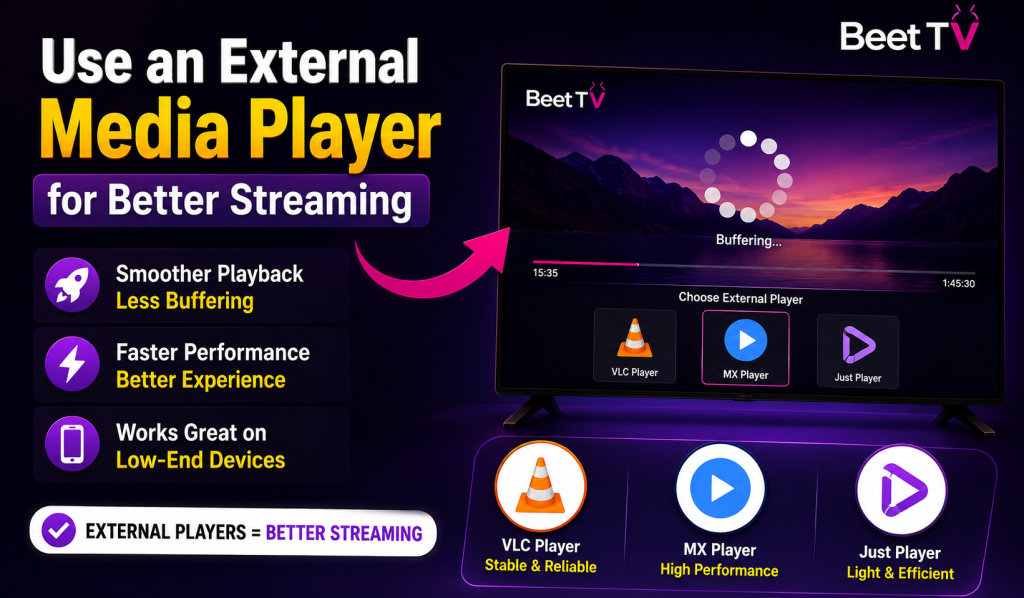
Use an External Media Player for Better Streaming
Many streaming experts recommend using an external media player instead of the built-in player because external players handle video playback more efficiently.
Popular media players include:
- VLC Player
- MX Player
- Just Player
These players often reduce buffering and provide smoother playback on low-end devices.
Reduce Video Quality To Stop Buffering
Sometimes internet speed is not strong enough for high-quality streaming like Full HD or 4K. Reducing video quality can help videos load faster and play without interruptions.
| Internet Speed | Recommended Quality |
|---|---|
| Slow Internet | 480p |
| Medium Speed | 720p |
| Fast Internet | 1080p |
Streaming at lower quality may slightly reduce picture sharpness, but it usually removes buffering completely.
Restart Your Firestick or Android TV
Devices that stay active for long hours may become slow because background processes continue running silently. Restarting the device helps clear temporary memory and refresh system performance.
How To Restart Firestick
- Hold the Home button
- Open Settings
- Select My Fire TV
- Click Restart
How To Restart Android TV
- Open Settings
- Select Device Preferences
- Choose Restart
Restart Your Firestick or Android TV
Devices that stay active for long hours may become slow because background processes continue running silently. Restarting the device helps clear temporary memory and refresh system performance.
How To Restart Firestick
- Hold the Home button
- Open Settings
- Select My Fire TV
- Click Restart
How To Restart Android TV
- Open Settings
- Select Device Preferences
- Choose Restart
Best Tips To Prevent BeetTV Buffering in the Future
Users can avoid most buffering issues by following a few simple habits regularly.
- Keep BeetTV updated
- Restart Firestick weekly
- Clear app cache regularly
- Use stable internet connections
- Avoid running multiple apps together
- Keep enough free storage space
- Use trusted streaming sources
Final Thoughts
Buffering problems on BeetTV APK can be frustrating, especially when movies or TV shows stop repeatedly during playback. Fortunately, most streaming issues can be fixed with simple adjustments like improving internet speed, clearing cache, updating the app, freeing device storage, or using better media players. Firestick and Android TV devices perform much better when they are optimized regularly and connected to stable internet networks.